A "verify you are human" checkbox doesn't mean a website is safe. Sometimes it's protecting the scammer.
We're used to clicking through these checks. You open a link, check a box, and get on with whatever you were doing. That habit gives phishing operators another way to keep people moving while making their pages harder to inspect.
What the screenshots show
The first screen looks pretty ordinary: a loading message and a Cloudflare-branded "Verify you are human" checkbox.
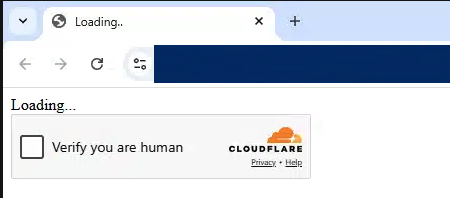
The verification screen before the sign-in page. The address has been hidden.
Next comes a page made to look like Microsoft's sign-in screen. Same familiar logo, email field, and blue Next button. If you're expecting to open a work document, it's easy to keep going without thinking much about it.
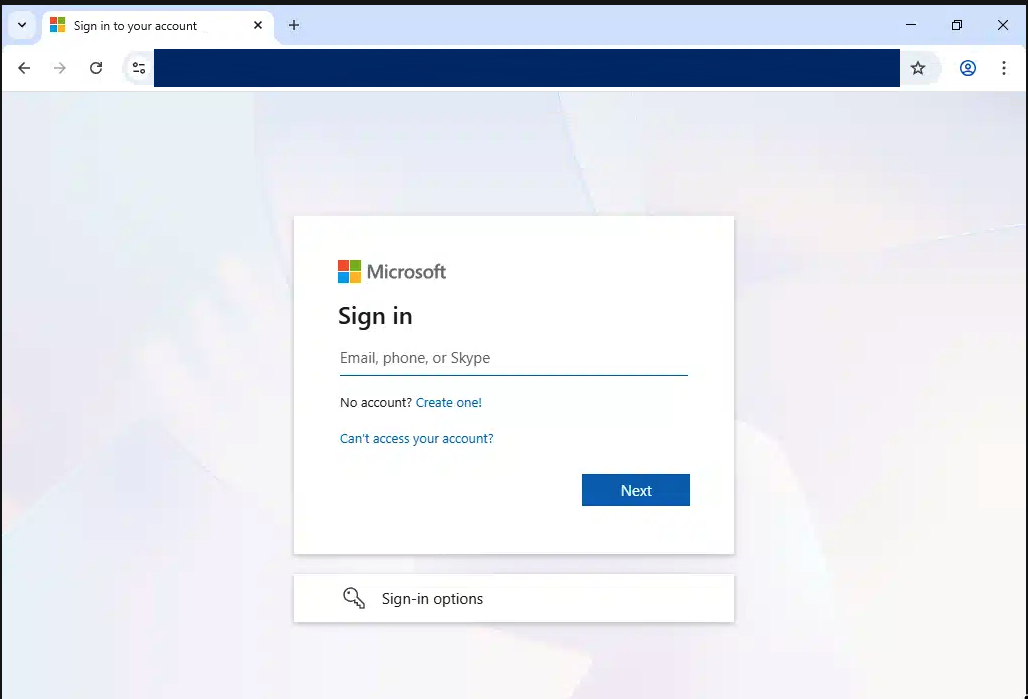
The Microsoft sign-in lookalike that followed. The address has been hidden.
The problem was in the address bar. The page was on a domain unrelated to Microsoft's sign-in service. The branding looked familiar, but the address didn't match.
Why put a security check in front of a scam
Human-verification tools are built to distinguish people from automated traffic. Cloudflare Turnstile is one example. Plenty of legitimate sites use it.
Attackers can use that same distinction against security tools. Put a check in front of the fake login, and some automated scanners may only reach the verification screen. A person can get past it and see the page asking for their credentials.
Microsoft has documented this in phishing campaigns, including the use of Cloudflare Turnstile and custom CAPTCHA challenges to block automated scanners before showing a copied sign-in page.
It also makes the flow feel more trustworthy. People recognize these checks from legitimate websites. Seeing one can lower their guard right before the attacker asks them to sign in.
A verification check tells you something about how a site handles visitors. It doesn't tell you who owns the site or whether you should trust it with your password.
A quick URL safety checklist
These are the same checks I'd use for an unexpected email, text, or QR code. They only take a moment.
- Check the domain carefully. Does it belong to the service you're trying to use? Watch for small misspellings and extra words. A company name somewhere in a long URL isn't enough to prove who owns the site.
- Preview unexpected links. Hover over a link on a computer to see its address. On a phone, use the press-and-hold link menu to inspect it. Microsoft recommends checking the destination this way. If the message already looks suspicious, skip the link.
- Look again after a redirect. A link can send you through several pages. Before entering a password or payment details, check the address of the page you actually landed on.
- HTTPS doesn't mean the site is trustworthy. It encrypts the connection. A phishing site can use HTTPS too, as Google's Chrome security team explains. The same goes for a familiar security checkbox.
- Use a route you already trust. If you're unsure, close the tab and open the service through a saved bookmark, its known address, or its official app. Check for the document or account notice there.
If a message is pushing you to act immediately, slow down. That's a good reason to double-check where the link goes.
Security scanners help, but a scan that couldn't get past a verification screen hasn't inspected the page behind it. That's a limit worth remembering.
Scammers can copy a login page and put a familiar checkbox in front of it. Take a second to check where you're actually signing in.